
Excellent productivity is vital as a virtual assistant. With the work of numerous clients to juggle at once, it’s important that I’m using my time effectively for each of them so that I keep on top of work and so that they get the best out of me.
To help me be as productive as possible, I use a number of different tools to keep me organised. Here are some of my favourites, the reasons I love them, and how you can make the most of them yourself.
There are alternatives to all of these tools out there, and you might find that something different works slightly better for you and your business. This list is intended as a guide to my own personal preferences and those tools that I use myself.
1. ClickUp
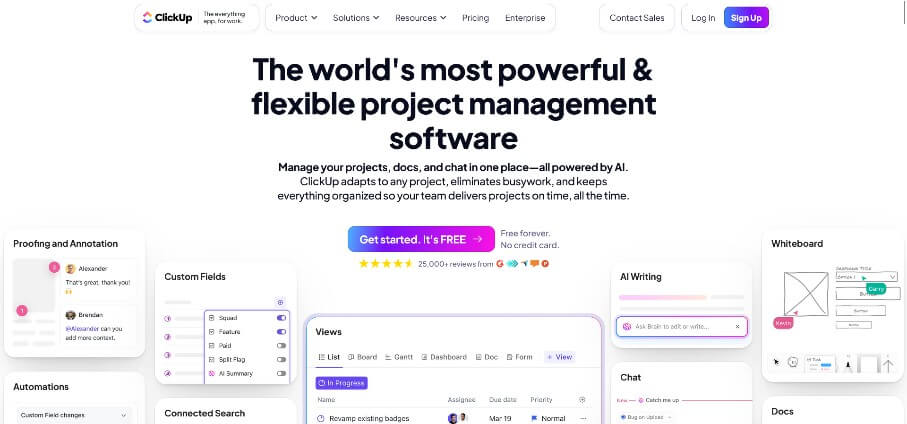
ClickUp was an eye-opener when I first discovered it. I’d previously used Trello, but after a few years into my business, my needs hade gone beyond what Trello could offer (though I’d still recommend it as a simple to-do list tool.)
ClickUp is an amazing tool to help you manage tasks and teams. You can have several spaces, which are split into folders, lists, and task cards. You can assign team members to each space, list or card, schedule tasks, keep track of notes, create checklists, add labels, and much more. There are also a load of different add-ons you can include.
There is a free version which is good for getting started, as there’s a bit of a learning curve to ClickUp. Paid versions are also available depending on your needs and team size.
We offer ClickUp training, management and setup, so just get in touch if you’d like any help.
2. Google Calendar
My diary keeps me on track for appointments, but also for task management.
The most obvious user for Google Calendar for a business is to book in appointments with clients and team meetings. You can also send invitees a Google Meet video link if I want to avoid using yet another tool Teams or Zoom. With Google Calendar, you have the ability to set multiple reminders before events, too, so I have reminders popping up the day before, the morning of, and half an hour before a meeting – just to make absolutely sure I don’t miss anything!
I also use Google Calendar to plan and schedule my whole working day. Each week, I’ll review my upcoming tasks in ClickUp, group them by client, and then schedule a block in Google Calendar. This helps me focus, prevents me jumping between lots of different tasks (and therefore losing time and brain power amongst all the switching), and gives me an overarching idea of how my week looks. It also means that I can make sure tasks are prioritised as needed. So Google Calendar gives me the overview, and ClickUp gives me the granular.
3. Keeper Security

Keeper Security is a paid password manager that securely stores all my login details, of which I have many. It generates strong passwords whenever I create a new account, too. This is a great, safe way of using difficult-to-guess passwords without having to remember each and every one of them, or look them up each time I need them. I have an extension on my browser and an app on my phone.
With Keeper, I can also securely share passwords with clients and associates, ensuring only those people who need access have access.
4. Google Drive or Dropbox
I recently moved from Dropbox to Google Drive, mainly because I wanted to try other Google Workspace features like a paid email provider and the whole suite of Google Docs, Google Sheet, etc. I have to say though, the jury is still out on the cloud storage. I really like Dropbox and I feel it integrates much better with my laptop. However, Google Drive does the trick, and is the more cost effective of the two considering the amount of additional features I get. Either way, I wouldn’t be without one or the other.
I find Drive and Dropbox really useful tools for storage and file management. They allow me the flexibility to easily work with clients remotely, either from my own office or from anywhere with decent WiFi signal. Cloud storage is a great way of sharing files and information: you can control who has access to do what, share a specific file via a link, or allow a team to access and edit certain folders.
5. Google Chrome
Browsers are not usually something you see on a list of best productivity tools, but I always like to throw something a bit different into the mix.
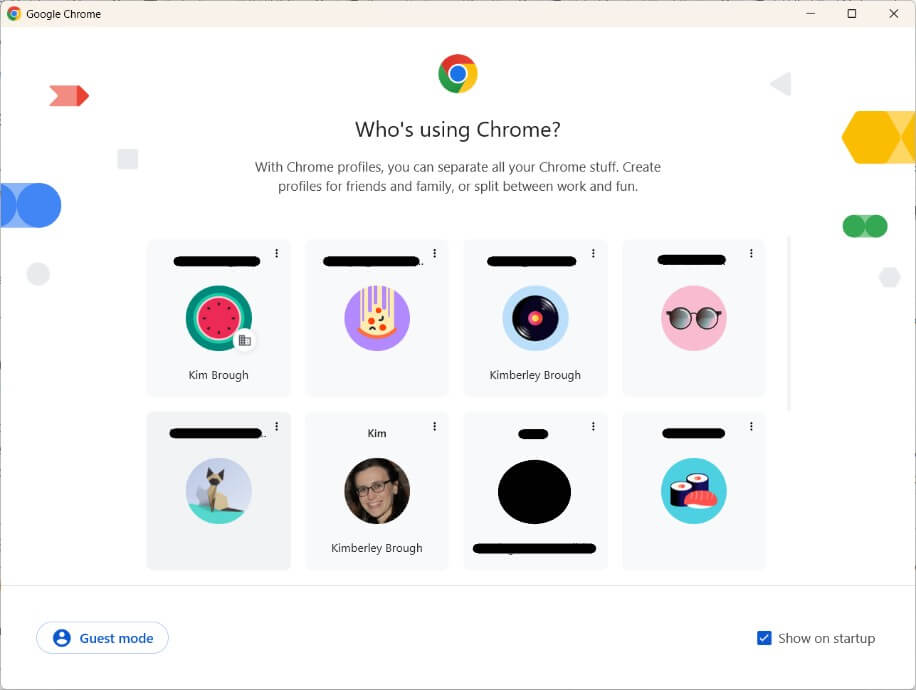
The main reason I consider Google Chrome one of my top productivity hacks is because you can set up different Chrome profiles. I can create a different profile for every client I have. Each profile opens in a new Chrome browser and is completely separate from others, so I can store different bookmarks, different tabs and different cookies in each of them.
For example – I manage the Outlook inboxes for several different clients. Have you ever tried switching between outlook profiles in one browser? It’s a pain in the a**e and rarely works as it should (which is one reason you don’t see any Microsoft tools on this list!). However, in each Chrome profile I’m logged into a different Outlook account, so there’s no faffing with constantly switching between accounts – it’s less stressful and much more streamlined.
If you don’t work with multiple clients, but use the same computer for everything, try using different Chrome profiles for work and personal. You don’t need a separate Google account for them (though you can if you prefer). Set it up by selecting your profile icon in the top right of your browser, and selecting +Add Chrome profile.
So there are some tips I use for keeping on track and getting things done.
Bonus tip: It’s also worth noting that I don’t have all notifications on for all these apps – I can’t stand my phone constantly buzzing and distracting me. So I have calendar reminders and that’s it. I get notifications for ClickUp and any of the others when I go looking for them, and that’s it.
If you enjoyed this blog, you might also enjoy these:

